
What is Phoenix Service Tool?
Phoenix Service Tool is a professional-grade Windows utility for mobile technicians, supporting Samsung, Xiaomi, HMD/Nokia, Huawei, Vivo, Transsion (Tecno/Infinix/itel), Realme, OnePlus, OPPO, and Honor devices. The tool handles firmware flashing, FRP bypass, account removal, bootloader operations, and device diagnostics from a single organized interface. The V8.7.2 update released in 2026 brings meaningful improvements to performance, device detection, and Samsung FRP compatibility that technicians should be aware of.
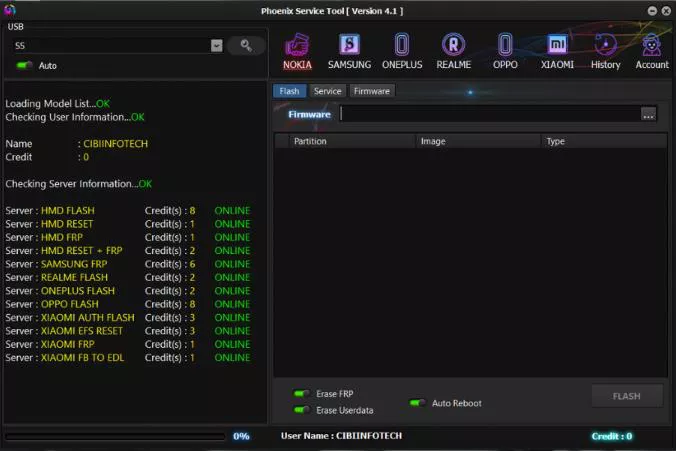
What's New in V8.7.2 (2026)
V8.7.2 is a maintenance and stability release that refines the tool's core infrastructure rather than adding major new functions. Here is the full changelog:
- Added Auto Update feature — the tool now checks for and installs updates automatically, removing the need to manually download new versions
- Faster software loading — removed 5 unnecessary API calls on startup, significantly reducing launch time
- Added Device Manager button for COM Port settings — direct access to Windows device manager from within the tool
- Added Auto Live Port Refresh for ADB, Fastboot, QLM, and MTK connection modes
- Improved QLM, MTK, and DIAG protocols — better handshake and communication stability
- Added Device Model List Search feature — quickly find a specific model without scrolling through the full list
- Fixed issue where the model had to be reselected after changing tabs
- Added Format All + Download support for MediaTek V5 and V6 protocol devices
- Added confirmation message before starting any credit-based operation
- Fixed Fastboot mode information logs that were blanking out on certain configurations
- Fixed Realme Qualcomm EFS Reset issue that returned an error on supported models
- Fixed "Unable to open COM Port (Error: 170)" on systems with many virtual COM ports
- Added Preloader support in Partition Manager
- Improved MTK V6 Protocol and overall stability
Key Features
- Smartphone Flashing: Write official firmware (ROM) to a wide range of Android devices to repair software issues, downgrade/upgrade OS, or unbrick phones
- FRP Bypass: Remove Google account locks (FRP) on Android devices via MTP mode without needing the original credentials. Samsung Reset FRP works on all security patch levels
- Factory Reset / Format: Wipe userdata and perform factory resets via multiple connection modes
- Account Removal: Remove Samsung Account, Mi Account, Huawei ID, and other brand accounts on supported devices
- IMEI Repair: Write and restore IMEI numbers in Diag and EDL modes
- Bootloader Operations: Unlock and relock bootloaders on supported brands
- NV Backup / Restore: Backup and restore NVDATA, EFS, and QCN files for network-related repairs
- Network Unlock: Remove SIM network restrictions on supported models
- Multi-Brand Coverage: Samsung, Xiaomi, HMD Nokia, Huawei, Vivo, Transsion, Realme, OnePlus, OPPO, Honor
Supported Brands and Functions
| Brand | Key Functions |
|---|---|
| Samsung | Read Info, Reset FRP (MTP), Reset Account, Factory Reset, Exit Download Mode |
| Xiaomi / Redmi / POCO | Mi Account Bypass (EDL), FRP Reset, Bootloader Unlock, Firmware Flash |
| HMD Nokia | Firmware Flash, FRP Reset, Factory Reset, Read Info |
| Huawei / Honor | FRP Reset, Account Remove, Firmware Flash |
| OPPO / Realme / OnePlus | Demo Remove, FRP Reset, Network Unlock, Firmware Flash |
| Vivo | FRP Reset, Account Remove, Firmware Flash |
| Tecno / Infinix / itel | FRP Reset, IMEI Repair, Bootloader Unlock, Factory Reset |
System Requirements
- Operating System: Windows 10 or Windows 11 (64-bit recommended)
- Processor: Intel Core i3 or equivalent
- RAM: 4 GB minimum (8 GB recommended)
- Internet connection required for all operations (credits system)
- Active Phoenix Service Tool account with purchased credits
How to Use — Samsung FRP Bypass (MTP Mode)
- Download and install Phoenix Service Tool on your Windows PC
- Create a free account at phoenixservicetool.com and purchase credits from an authorized reseller
- Launch the tool as Administrator
- Connect your Samsung device to the PC via USB in MTP mode (File Transfer)
- Select the Samsung tab from the top menu
- Click Read Info to confirm device detection
- Click Reset FRP — the tool communicates via MTP to remove FRP
- Wait for the process to complete and the device to reboot automatically
- Device will boot to the setup screen without Google account verification
Credit Pricing (Reference)
Phoenix Service Tool uses a credit-based system. Samsung FRP Reset via MTP costs a small number of credits per operation. Credits never expire once purchased. Visit the official site for current credit pricing and reseller contacts.
Notes
- Phoenix Service Tool requires an internet connection to communicate with the server for credit verification
- Credits must be purchased from verified resellers — avoid third-party credit sellers
- Antivirus software may flag the tool during installation because it interacts with USB devices; temporarily disable Windows Defender or add an exception
- Always back up important data before performing FRP reset or firmware flashing operations
- The Auto Update feature in V8.7.2 keeps the tool's device database current automatically
Download Link
Download Phoenix Service Tool V8.7.2 from the official website or trusted GSM forums. Always verify that you are downloading from the official source to avoid modified builds. Official site: phoenixservicetool.com
Thanks for reading: Phoenix Service Tool V8.7.2 - Free Multi-Brand Android Servicing Tool [2026], Sorry, my English is bad:)