
How to Use Lesufluid Software Update Tool
In this article, we will guide you through installing stock firmware (.mo) on old ARM chipset-powered devices using the Lesufluid Software Update Tool.
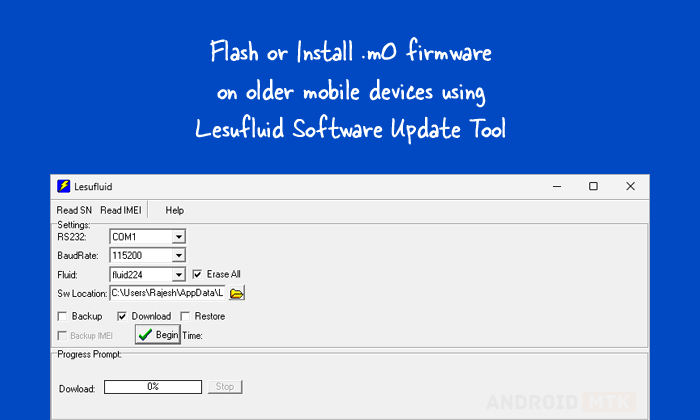
What is the Lesufluid Update Tool?
The Lesufluid Software Update Tool is an official flashing utility provided by Lenovo Mobile Co., Ltd. It helps you flash or install stock firmware (.m0) on old ARM chipset-based devices.
What is Stock Firmware?
Stock firmware refers to the original operating system (OS) pre-installed on an ARM chipset-based device when it leaves the factory. It's a tailored version of the OS, customized by the manufacturer to incorporate its unique user interface (UI), proprietary features, and pre-installed applications.
How to Install .mo Firmware Using Lesufluid Update Tool
Installing the necessary drivers and tools before installing or flashing stock firmware using the Lesufluid Software Update Tool is important.
📍Disclaimer: GSM-DZ shall not be held liable for any damage incurred to your device during or after following this guide. Proceed with caution and at your own risk.
Steps to Install .mo Firmware using Lesufluid Software Update Tool
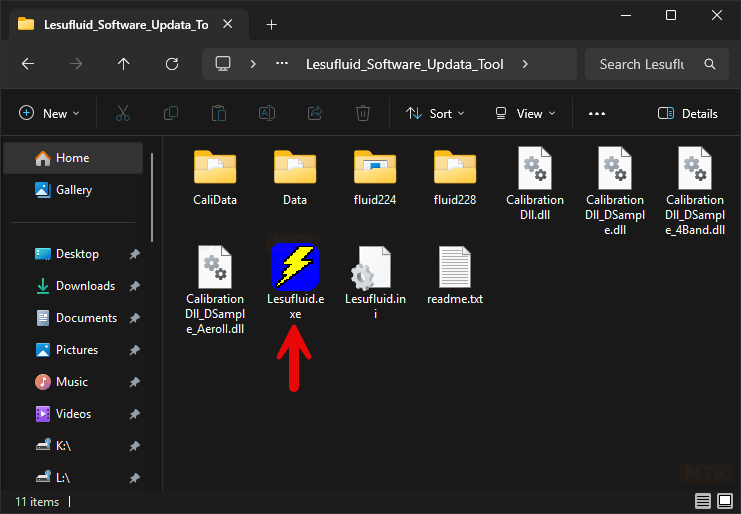
- Launch the Lesufluid Tool by double-clicking on the Lesufluid.exe file (found inside the Lesufluid Update Tool folder).
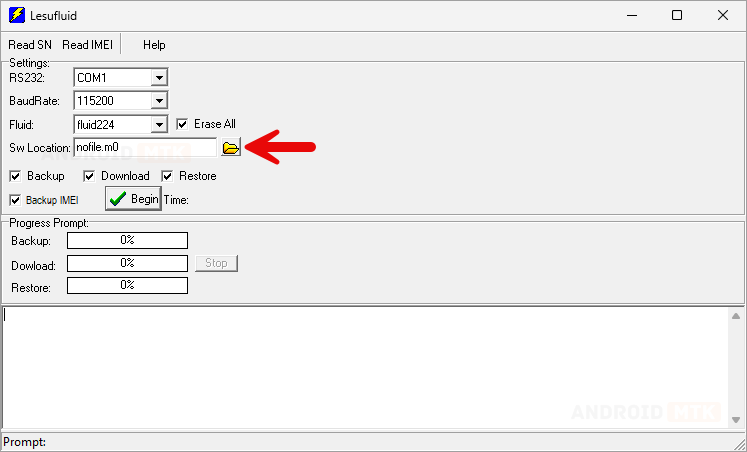
- Once the Lesufluid Tool is launched, click the Browse button.
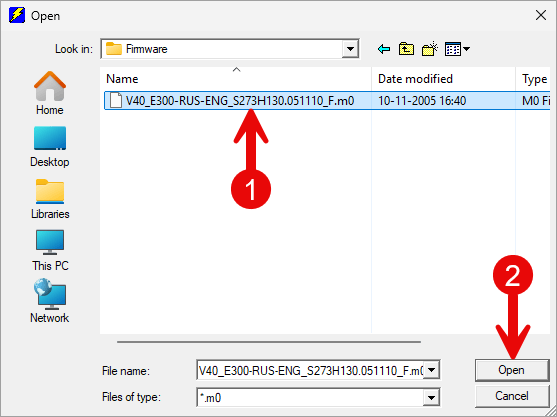
- Locate the Firmware (.m0) that you want to flash/install.
- Power off your device and connect it to your computer using the USB cable.
- Once the computer detects the device, you can check the device port ID from the device manager.
- Press the Windows key + R.
- Type
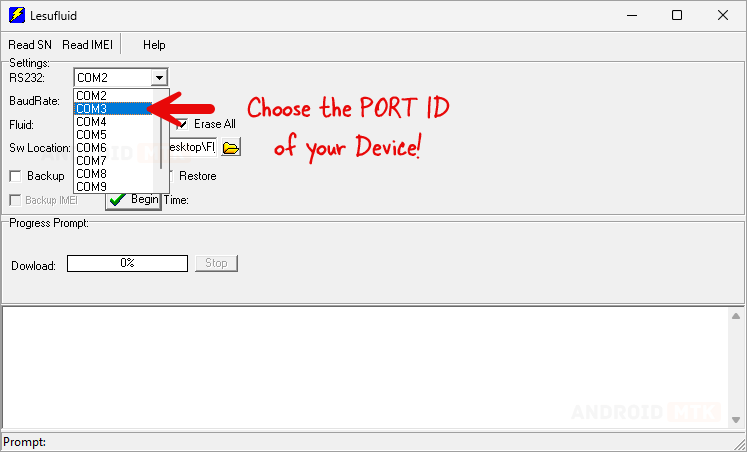
devmgmt.mscand press Enter. - Choose the Device Port ID from the Drop-down menu.
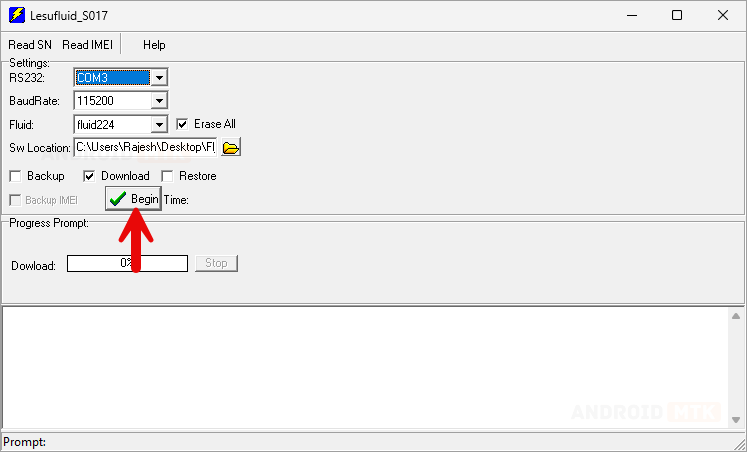
- Click on the Begin button to start the flashing process.
- Once the flashing process is completed, you will get a Green 100% progress bar at the end.

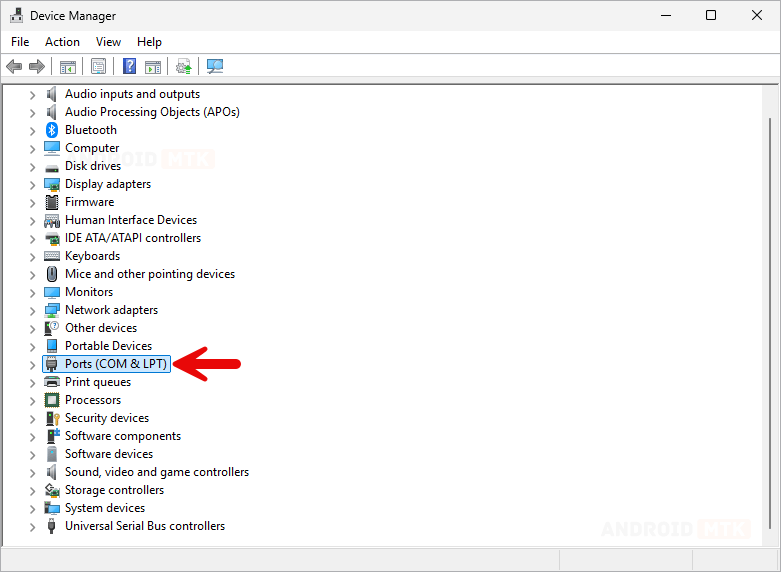
👆How to Open Device Manager:
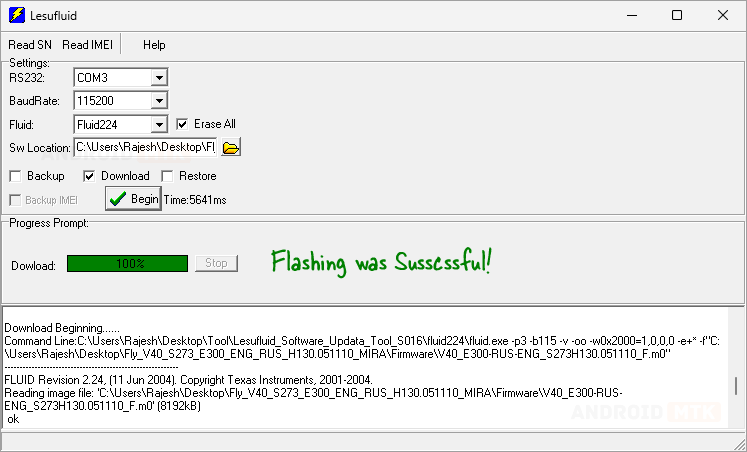
Congratulations!
You have successfully flashed the stock firmware. Close the Lesufluid Update Tool, disconnect your device from the computer, and restart it.
Download Resources
Check the official Lesufluid website for the latest version and official resources.
Download Resources
Check the official Lesufluid website for the latest version and official resources.
Thanks for reading: How to Use Lesufluid Software Update Tool, Sorry, my English is bad:)